
How to Create a LinkedIn Profile: A Step-by-Step Guide
Sign up with your real name, then add a 400 x 400 px photo, a 1584 x 396 banner, a headline, About, experience and 5+ skills. Every step, in order.

To create a LinkedIn profile, sign up with your real name and a personal email address, then fill in the sections in this order: profile photo, background banner, headline, About, experience, education, skills and location. The photo goes first because it appears next to your name everywhere on LinkedIn, in search results, comments and messages, and LinkedIn's own guidance says members with a profile photo receive up to 2x more profile views.
The steps below take about an hour for a first profile. Each one says what to enter and how to get it right.
The steps at a glance
| Step | What to add | Key spec or rule |
|---|---|---|
| 1 | Sign up | your real name, a personal email, one profile only |
| 2 | Profile photo | JPG or PNG, 400 x 400 to 7680 x 4320 px, up to 8 MB |
| 3 | Background banner | 1584 x 396 px recommended, JPG or PNG, under 8 MB |
| 4 | Headline | what you do, keywords first |
| 5 | About | up to 2,600 characters; 40 words or more |
| 6 | Experience | a current position, with results, not duties |
| 7 | Education | degrees, certifications, credentials |
| 8 | Skills | 5 or more |
| 9 | Location and industry | where you work and your sector |
| 10 | Extras | Featured, recommendations, custom URL |
Step 1: Sign up
- Go to the LinkedIn sign-up page.
- Enter your first and last name and your email address, and a password if asked. You can also join with a Google or Apple account.
- Click Join now and complete the prompts, including the verification email.
LinkedIn's sign-up rules say you must use your true name (company names and pseudonyms are not allowed), you should not use a shared role address such as sales@ or marketing@, and you may not create more than one profile. Use a personal email so you keep the account if you change jobs.
Step 2: Add a profile photo
Your photo is the first thing people see, at a small size, before they read anything. Get it right before you spend time on the rest.
LinkedIn's photo specs
From LinkedIn's help page on profile photos:
| Spec | Requirement |
|---|---|
| Format | JPG or PNG (GIFs are not supported) |
| Size | between 400 x 400 and 7680 x 4320 pixels |
| File size | up to 8 MB |
| Display | cropped to a circle |
Upload a square image well above the minimum, with your face centered, so nothing important falls outside the circle.
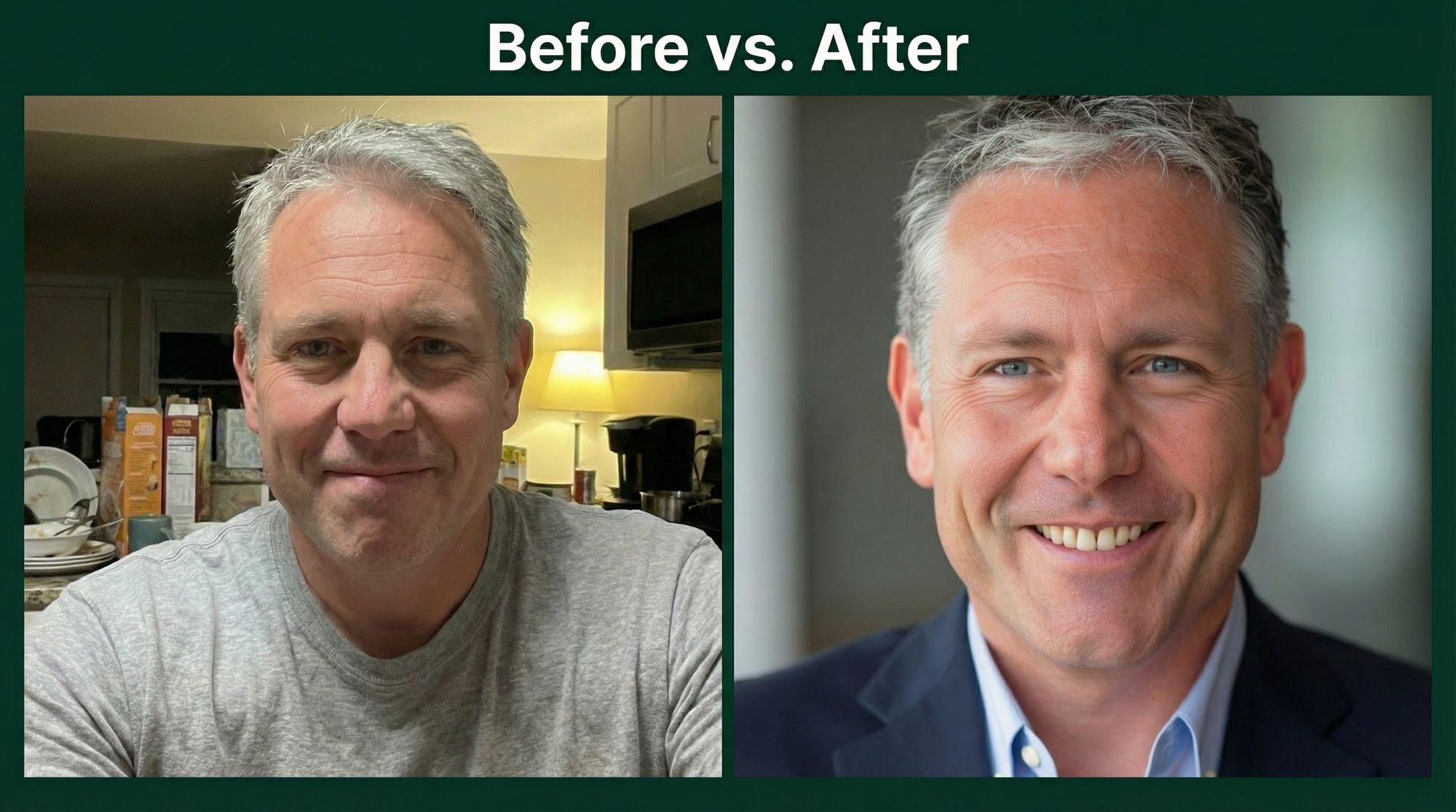
What makes the photo work
- Framing. Head and top of the shoulders. Your face should fill most of the circle so it is recognizable on a phone. A full-length or group shot shrinks you to a dot.
- Light. Soft and even, with no harsh shadows. Face a window in daylight; never have the light behind you.
- Background. Plain or softly blurred: a light wall, a gray backdrop or a blurred office.
- Expression. Look at the camera with a natural smile that reaches your eyes.
- Clothes. What you would wear to work in the job you want, in solid colors.
- Current. It should look like you do now. Update it after a new haircut, glasses or a beard.
Mistakes to avoid
| Mistake | Fix |
|---|---|
| A selfie with your arm in the frame | use a tripod or ask someone to take it |
| A photo cropped from a group or event shot | take a dedicated solo photo |
| A busy background | a plain wall, or portrait mode blur |
| Harsh shadows or a dark face | face a window; avoid overhead light and backlight |
| An old photo | retake it; it should look like you today |
| Wrong attire for your field | match what people in your target role wear |
Match the photo to your industry
| Industry | Attire | Background |
|---|---|---|
| Finance and law | suit or blazer | charcoal, navy or a blurred office |
| Tech and startups | smart casual, a button-down or fitted sweater | light gray or soft color |
| Creative and marketing | personal style with some texture | warm neutrals |
| Healthcare | scrubs, a white coat or business casual | white or pale blue |
| Consulting | polished business | neutral or a blurred city |
Where to get the photo
- A photographer gives you direction on expression and pose, and is the stronger choice for executive and press use.
- Yourself with a phone: use the rear camera, prop it a few feet away, face a window and use the timer. Our guide to how to take a good LinkedIn photo walks through it.
- AI headshots from your own photos. Headshots by Magic Studio costs $59 for 50 headshots across 5 looks, ready in 15 minutes from about ten of your photos, and you pay only after you have seen them. Choose one that looks exactly like you.
For framing, crop and what to wear in more depth, see our LinkedIn profile picture guide.
Step 3: Add a background banner
The banner is the wide image behind your photo. Leaving the default gray looks unfinished.
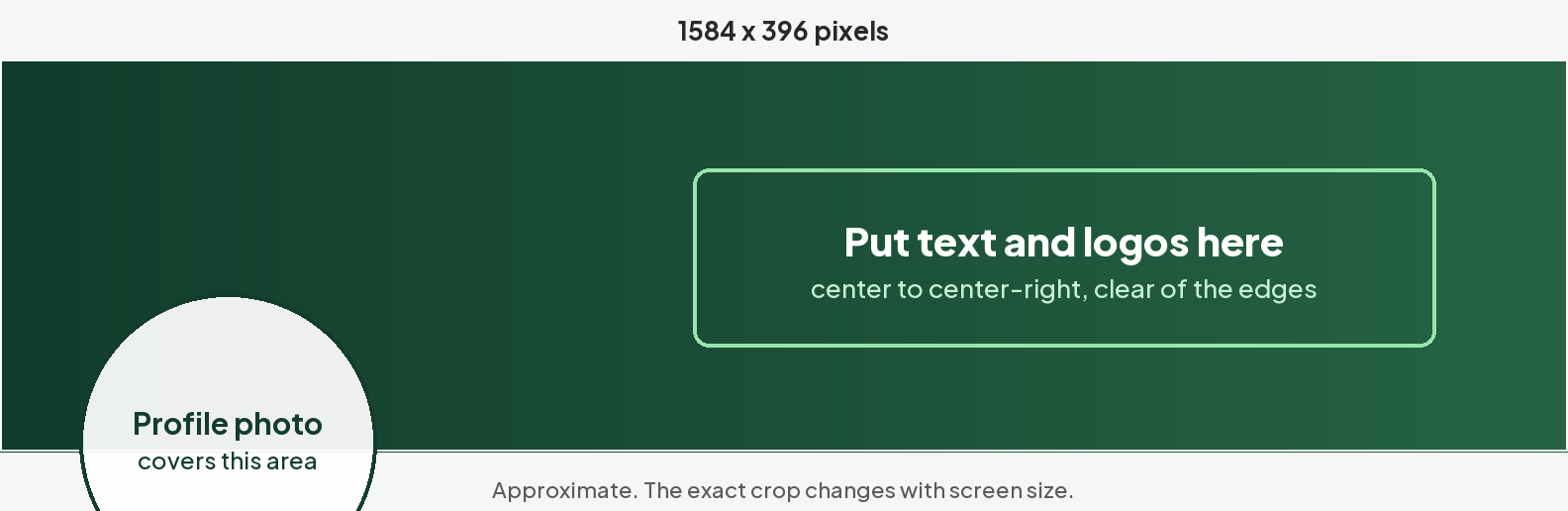
From LinkedIn's background photo help page: use 1584 x 396 pixels (recommended), JPG or PNG, under 8 MB.
Good choices: you speaking or working, your city or office, a product or project you are known for, or a simple design in your brand colors with a short line of text. Your profile photo covers part of the lower left of the banner, and the overlap differs between desktop and mobile, so keep text and key details toward the center and right. Our LinkedIn background photo guide shows the safe areas.
Step 4: Write your headline
The headline is the line under your name. It shows in search results, invitations and comments, and LinkedIn fills it with your job title unless you change it.
To edit it: click Me, then View Profile, then the Edit icon in your introduction section, and change the Headline field, then click Save.
A formula that works: Role | Core skills | What you deliver.
- Weak: "Marketing Manager at Company X"
- Better: "B2B Growth Marketer | Demand Gen & SEO | Building pipeline for SaaS teams"
- Another: "Data Analyst | SQL, Python, Tableau | Turning messy data into business decisions"
Put the most important words first, because the headline is cut short in some views on mobile and in search.
Step 5: Write your About section
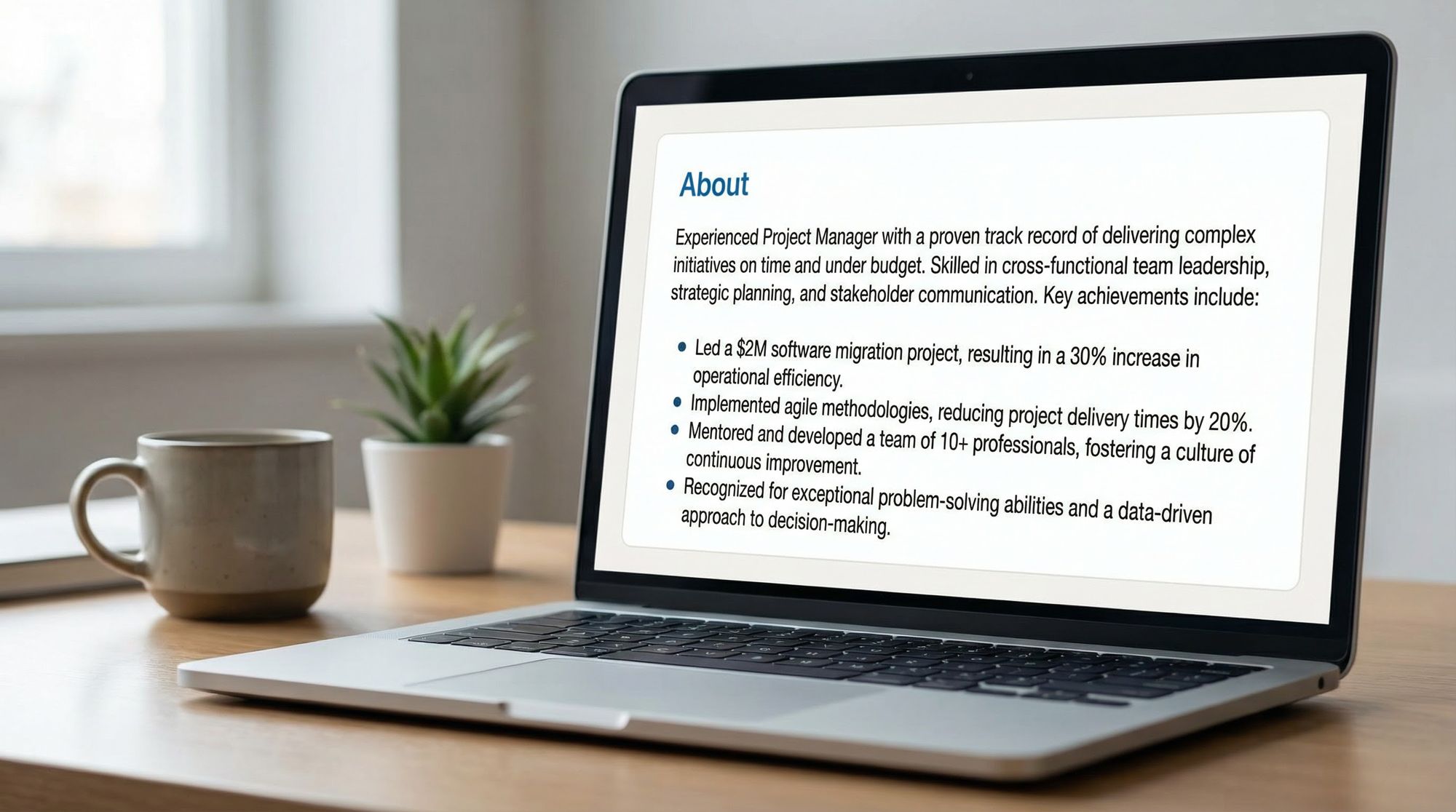
The About section holds up to 2,600 characters. LinkedIn's profile guide says a summary of 40 words or more makes your profile more likely to show up in an employer's search, and its help pages suggest one or two paragraphs, or bullet points if you prefer.
A structure that works:
- Hook. One or two sentences on who you are and the problem you solve.
- Proof. Three to five bullet points, each with something you did and what happened because of it.
- What you want. The roles, clients or conversations you are looking for, and how to reach you.
Write in the first person, keep sentences short and lead with results. Only the opening lines show before "see more", so make the first sentence count.
Step 6: Add your experience
Add your current position first, then past roles. For each, write two to four bullet points about what you achieved, with numbers where you can.
- Weak: "Responsible for sales team management"
- Better: "Grew regional sales 20% in a year by changing how leads were qualified"
Add media (a deck, a case study, a link) to a role if it proves the work.
Step 7: Add education
Add degrees, certifications and industry credentials. Recent graduates can put education higher in the profile and add relevant coursework or projects.
Step 8: Add skills
Add at least five skills. LinkedIn's profile guide says members who add five or more skills get up to 17x more profile views. Choose the skills that appear in job descriptions for the roles you want, and pin the most important ones at the top. Colleagues can endorse them later.
Step 9: Add location and industry
Set your location to where you work or want to work, since recruiters can search and filter by location. Add your industry as well; LinkedIn's profile guide says members who add an industry get up to 9x more profile views.
Step 10: Finish with the extras
- Featured. Pin three to five of your best posts, articles, presentations or press mentions.
- Recommendations. Ask former managers and colleagues for a short recommendation about specific work. LinkedIn sets no limit on how many you can request.
- Custom URL. Change your profile URL to your name so it is clean on a resume and shows better in search engines.
- Name pronunciation. Record a short clip (under 10 seconds) so people say your name right.
The LinkedIn profile guide lists all of these sections.
Check it on your phone
Many people will first see your profile on a phone, where only your photo, name, headline and the start of your About section show before scrolling. Open your profile in the LinkedIn app and check that:
- your face is clear in the small circle
- the banner's important parts are not hidden behind your photo
- the headline reads well when cut short
- the first line of your About section makes someone want to tap "see more"
Review your profile every few months: refresh the headline when your focus changes, add new skills and results, and update the photo when you no longer look like it.
Common questions
How do I create a LinkedIn profile?
Go to the LinkedIn sign-up page, enter your real name and a personal email address, click Join now and verify your email. Then add, in order, a profile photo, a background banner, a headline, an About section, your experience, education, at least five skills, and your location and industry.
What size should a LinkedIn profile photo be?
LinkedIn accepts JPG or PNG files between 400 x 400 and 7680 x 4320 pixels, up to 8 MB. It shows the photo as a circle, so upload a square image well above the minimum with your face centered.
What size is the LinkedIn background banner?
LinkedIn recommends 1584 x 396 pixels for the profile background photo, as a JPG or PNG file under 8 MB. Keep text and key details away from the lower left, where your profile photo overlaps the banner.
What should I write in my LinkedIn headline?
Say what you do, not just your job title. A simple formula is role, then core skills, then the result you deliver, for example "Data Analyst | SQL, Python, Tableau | Turning messy data into business decisions". Put the most important keywords first because the headline is cut short in some views.
How long should a LinkedIn About section be?
The About section allows up to 2,600 characters. LinkedIn says a summary of 40 words or more makes you more likely to appear in an employer's search. One or two short paragraphs, or a short intro followed by bullet points of results, work well.
How many skills should I add to LinkedIn?
Add at least five relevant skills. LinkedIn's profile guide says members with five or more skills get up to 17x more profile views. Choose skills that appear in job descriptions for the roles you want.